
Overview
Installing an eSIM takes under five minutes once you know the steps. This guide covers every device type, both activation methods (QR code and manual), and the most common issues with fixes. Whether it's your first eSIM or your tenth, this is the definitive walkthrough.
Before You Start: Requirements Checklist
Before attempting eSIM installation, confirm these requirements are met.
Device Compatibility
iPhone XS or newer, Google Pixel 3+, Samsung Galaxy S20+, or check your manufacturer's eSIM support page
Device Unlocked
Your device must be carrier-unlocked to use a third-party eSIM plan — check with your carrier if unsure
Stable Wi-Fi
eSIM profile download requires internet — use home Wi-Fi for the most reliable installation
QR Code Ready
Have your QR code email open on a second device or printed — you can't scan a QR code on the same screen displaying it
Latest OS Version
Update your device to the latest iOS or Android version before installing — reduces compatibility issues
15–20 Minutes
First-time installation including troubleshooting buffer — subsequent installations take 2–3 minutes
iPhone eSIM Installation (iOS 16+)
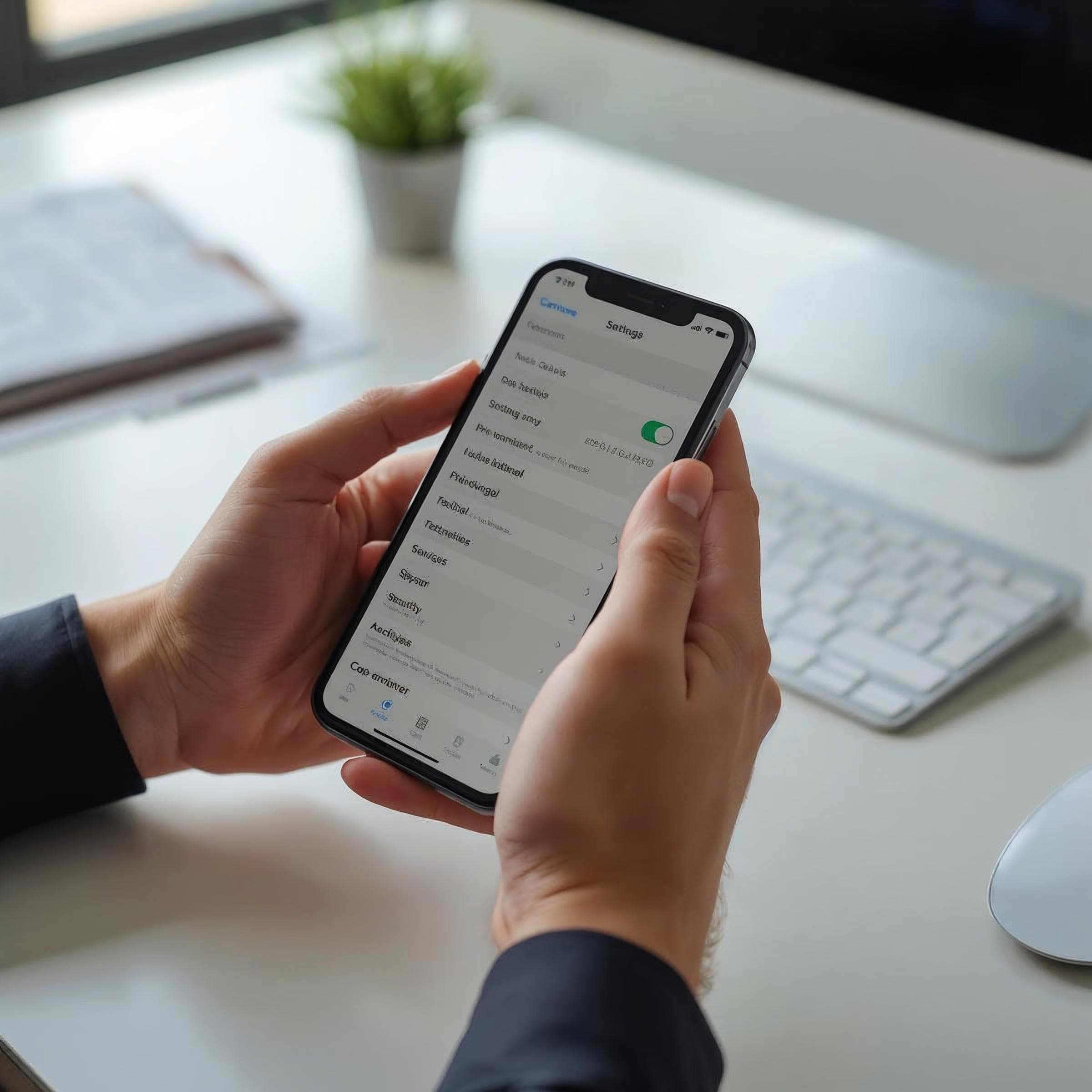
On iPhone: Go to Settings → Cellular → Add eSIM. Select 'Use QR Code' or 'Enter Details Manually.' If using QR code: tap 'Use QR Code,' then point your camera at the QR code from your eSIM provider email. If using manual entry: enter the SM-DP+ address and activation code from your provider. Tap 'Continue' on the confirmation screen. Tap 'Add Cellular Plan.' Label the plan (e.g., 'Europe Trip'). Choose whether this line handles calls, texts, or data only. Done. The eSIM profile is installed — activate it when you land by going back to Settings → Cellular and toggling it on.
Google Pixel eSIM Installation (Android 12+)
On Google Pixel: Go to Settings → Network & Internet → SIMs → Add SIM. Tap 'Download a SIM instead.' Scan the QR code or enter the activation code manually. Follow the on-screen prompts to complete the download. Name the plan for easy identification. Set data preferences (use eSIM for data, keep physical SIM for calls if needed). Tap 'Activate.' The process takes 1–3 minutes. If scanning doesn't work, use the 'Enter code manually' option and type the activation code from your provider email.
Samsung Galaxy eSIM Installation (One UI 3.0+)
On Samsung Galaxy: Go to Settings → Connections → SIM card manager → Add mobile plan. Tap 'Scan carrier QR code.' Scan your provider QR code. Alternatively, tap 'Enter activation code' for manual entry. Confirm the plan details on the next screen and tap 'Confirm.' Wait for the profile to download (1–3 minutes on Wi-Fi). Name the plan. Set up which line handles calls vs data. Samsung devices may prompt you to sign into your Samsung account during this process — this is normal. After installation, go back to SIM card manager to toggle the eSIM on and off.
eSIM Installation Troubleshooting
QR code won't scan: Ensure good lighting, clean camera lens, and hold the phone steady 15–20cm from the code. If still failing, use manual entry instead — the activation code is in the same email. 'Download failed' error: This usually means poor internet connection. Switch to a different Wi-Fi network and retry. If on mobile data, switch to Wi-Fi. 'Invalid activation code': The code may have expired (most codes are valid 72 hours) or already been used on another device. Contact your provider for a new code. 'Not supported': Your device may be carrier-locked. Contact your home carrier to request unlocking before your trip.
After Installation: Configuring Your eSIM
After successful installation, configure your device for travel use. Set the eSIM as your data line and keep your physical SIM for calls. Enable 'Data Roaming' for the eSIM line — this is required even though you're using local data (it allows the eSIM to connect to the local carrier network). Disable data roaming on your physical SIM line to prevent accidental home carrier roaming charges. Test connectivity by loading a website. If no connection, toggle the eSIM off and on, and check that your APN settings match your provider's requirements (listed in the provider app or website).