
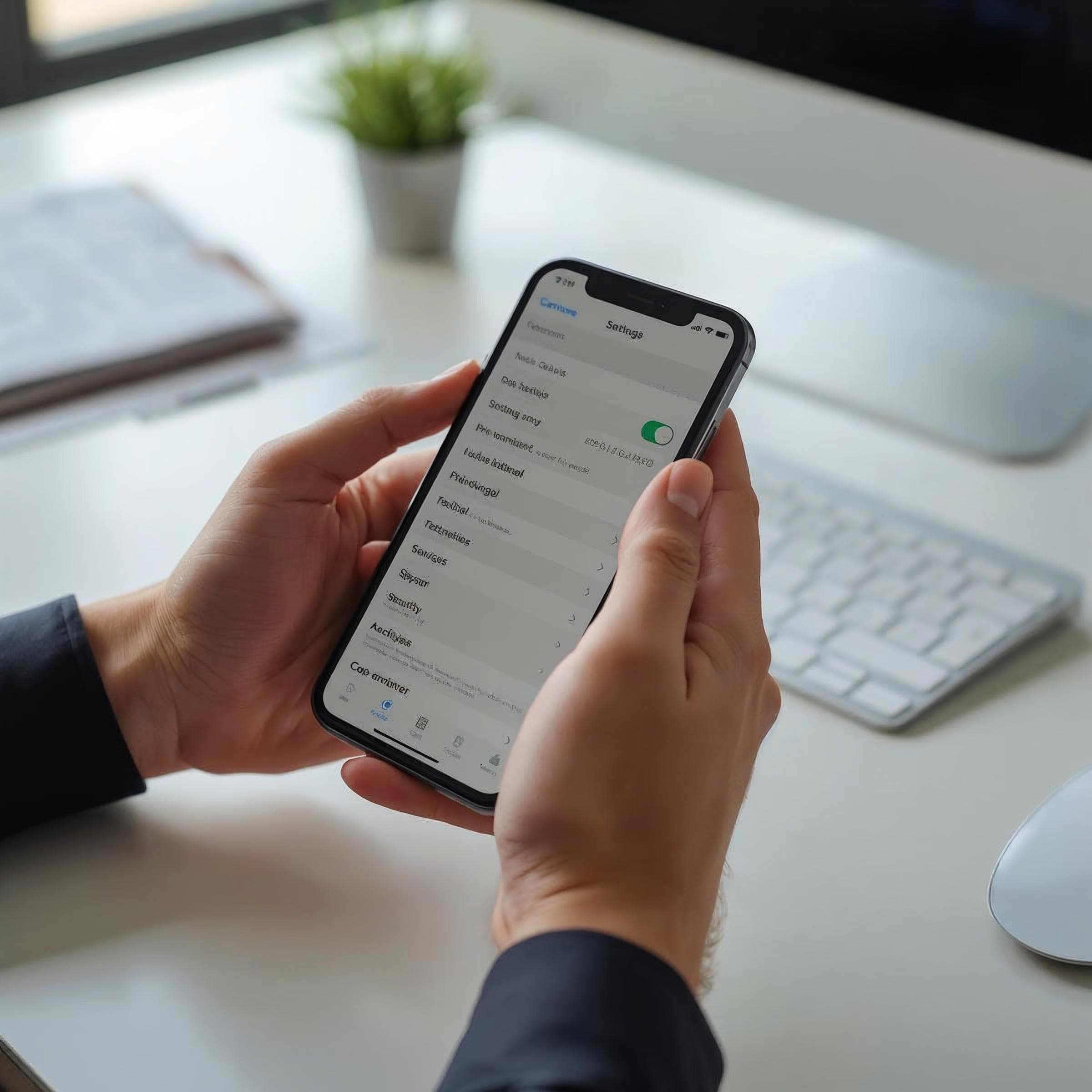
Overview
Most eSIM problems have simple fixes. This guide covers every common issue — from activation failures to signal drops — with specific solutions for each device type. Work through the relevant section and you'll be connected in minutes.
eSIM Activation Problems and Fixes
The most common eSIM problems happen during the initial activation step.
QR Code Won't Scan
Use manual code entry instead — the activation details are in the same email. Ensure good lighting and a steady hand
Download Failed Error
Switch to a different Wi-Fi network and retry. Avoid using public Wi-Fi for eSIM activation
Activation Code Invalid
Codes typically expire 72 hours after issue or after one use. Contact provider support for a replacement code
Profile Download Stuck
Restart device, reconnect Wi-Fi, and try again. If stuck at the same percentage, reset network settings
Carrier Authentication Failed
Verify your purchase was completed and payment processed. Check your provider account for plan status
Not Supported on This Device
Device may be carrier-locked. Contact your home carrier to unlock, or verify eSIM compatibility
Too Many eSIM Profiles
iPhones support up to 8 profiles but only 2 active. Delete old unused profiles before adding new ones
Time-Out During Activation
Some provider systems time out during peak periods. Wait 10 minutes and retry the activation
No Signal or Poor Connectivity After Activation
If eSIM activated successfully but you have no signal or poor connectivity: First, toggle the eSIM off and on in settings — this forces a fresh network search. Check that 'Data Roaming' is enabled for the eSIM line (required for travel eSIMs even on local networks). Manually select the carrier network in Settings → Cellular → [eSIM line] → Network Selection — disable automatic selection and choose the provider listed in your eSIM plan documents. If the listed carrier isn't showing, you may be in an area without coverage — check your provider's coverage map. Try toggling airplane mode on for 30 seconds, then off.
Slow Speeds or Dropping Connection
Slow data speeds are the most common complaint after activation. First, check whether your plan has a data speed cap after the first GB — many budget plans throttle to 512Kbps or 1Mbps after a threshold. Check remaining data: you may have used the high-speed allocation. In a different location, speeds may be higher — the local carrier's network quality varies by area. For dropping connections, disable 'Allow More Data on 5G' on iPhone (this causes aggressive switching that can cause drops). On Android, set preferred network to LTE rather than 5G/LTE auto if you experience frequent drops.
Device-Specific Issues and Fixes
iPhone: Most iPhone eSIM issues resolve with Settings → General → Transfer or Reset iPhone → Reset → Reset Network Settings. This clears cached network data without affecting your eSIM profiles. Samsung Galaxy: Go to Settings → Apps → Carrier Services → Storage → Clear Cache and Clear Data. Restart. This fixes most Samsung eSIM connectivity issues. Google Pixel: Update the Carrier Services app via Google Play before troubleshooting. Pixel phones depend on this app for eSIM management. If still failing, clear data from Settings → Apps → Carrier Services. All devices: Ensure your device OS is fully updated — eSIM compatibility improvements ship with every major OS update.
If Standard Fixes Don't Work
For persistent issues: Delete the eSIM profile and re-add it with a fresh activation code from your provider — this resolves corrupted profile installations. Check your APN settings match your provider's requirements (Settings → Cellular → [eSIM] → APN — your provider's website should list the correct APN). If on iPhone, sign out of iCloud, restart, and sign back in — this resolves profile authentication issues in some cases. As a last resort, back up your device and perform a network settings reset. Contact your eSIM provider's support with your device model, OS version, and the specific error message — most issues can be resolved remotely.
Preventing eSIM Problems Before They Start
Install your eSIM before departure, not at the airport — home Wi-Fi is more reliable than airport Wi-Fi for profile downloads. Keep your device OS updated. Check your provider's coverage map for your specific destination before purchasing. Save your provider's customer support contact offline. Screenshot your activation QR code and store it in photos as a backup. Test the eSIM by toggling it on for 30 seconds before your trip — if it connects at home, it installed correctly and just needs to be activated at your destination.