Overview
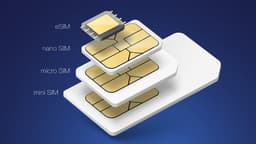
Setting up an eSIM is straightforward once you've done it once. The process differs slightly between iPhone and Android, but the principles are identical. Here's how to do it properly.
Before You Start: Compatibility and Unlock
Two things to confirm before buying any eSIM plan. First, check that your device supports eSIM: on iPhone, go to Settings > General > About > look for 'Available SIMs'. On Android, go to Settings > Network & Internet > SIM cards or similar. Second, confirm your device is unlocked — a carrier-locked phone may have eSIM disabled or restricted to the locking carrier's plans. If you're unsure, contact your UK operator.
iPhone Setup
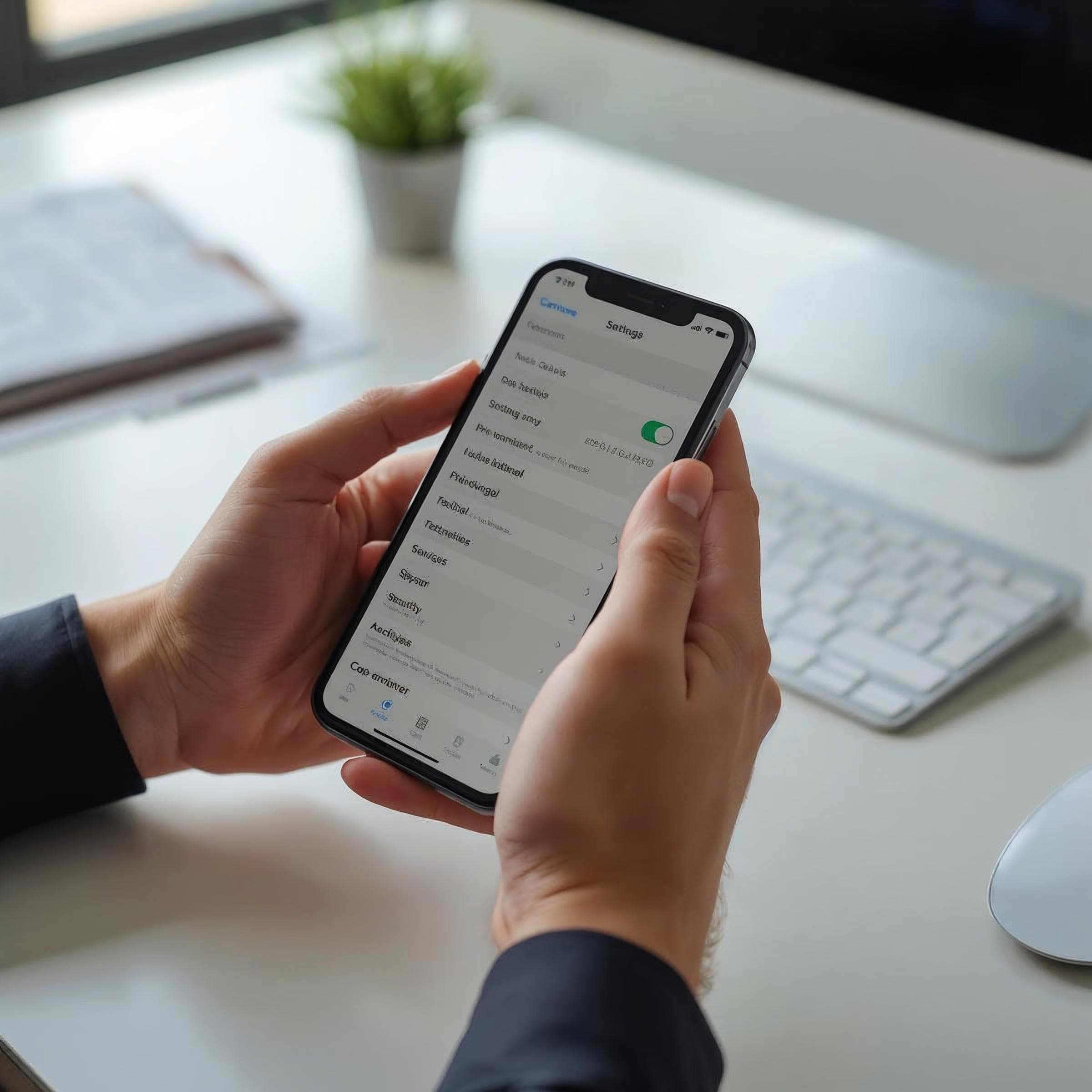
On iPhone, go to Settings > Mobile Service > Add eSIM (or Add Data Plan on older iOS). Select 'Use QR Code' and point your camera at the QR code in your confirmation email. Your phone downloads the carrier profile — the whole process takes about 30 seconds. You'll be asked to label the plan (e.g. 'Europe 2026') and choose whether to use it for data immediately or later. Set it to activate on arrival: go to your eSIM in settings and toggle 'Turn On This Line' when you land.
Android Setup
The path varies by manufacturer but the principle is the same. On Samsung: Settings > Connections > SIM Manager > Add eSIM. On Google Pixel: Settings > Network & Internet > SIMs > Add eSIM. On most other Android devices, look for 'Mobile Network' or 'SIM' in settings, then 'Add' or '+'. Scan the QR code, follow the prompts, and name your plan. Android handles multiple eSIM profiles well — you can switch between them without re-scanning.
Data Settings to Check
Once your eSIM is installed, confirm data routing in your settings. On iPhone: Settings > Mobile Data > make sure the eSIM is selected as your data line. On Android: Settings > Mobile Data or Network > select the eSIM as the default data SIM. You want your UK SIM handling voice and SMS, and the eSIM handling data. If you see unexpected roaming charges, it usually means data defaulted to the wrong SIM.
Common Problems and How to Fix Them
The most frequent issue is the QR code not scanning — which usually means poor lighting or a screen glare from the email. Try printing the QR code or asking your provider to resend it as a plain image. If the eSIM downloads but shows 'No Service', toggle aeroplane mode on and off; this forces the device to re-register on the new network. If problems persist, contact your provider's support — most offer a manual activation code as an alternative to the QR code.